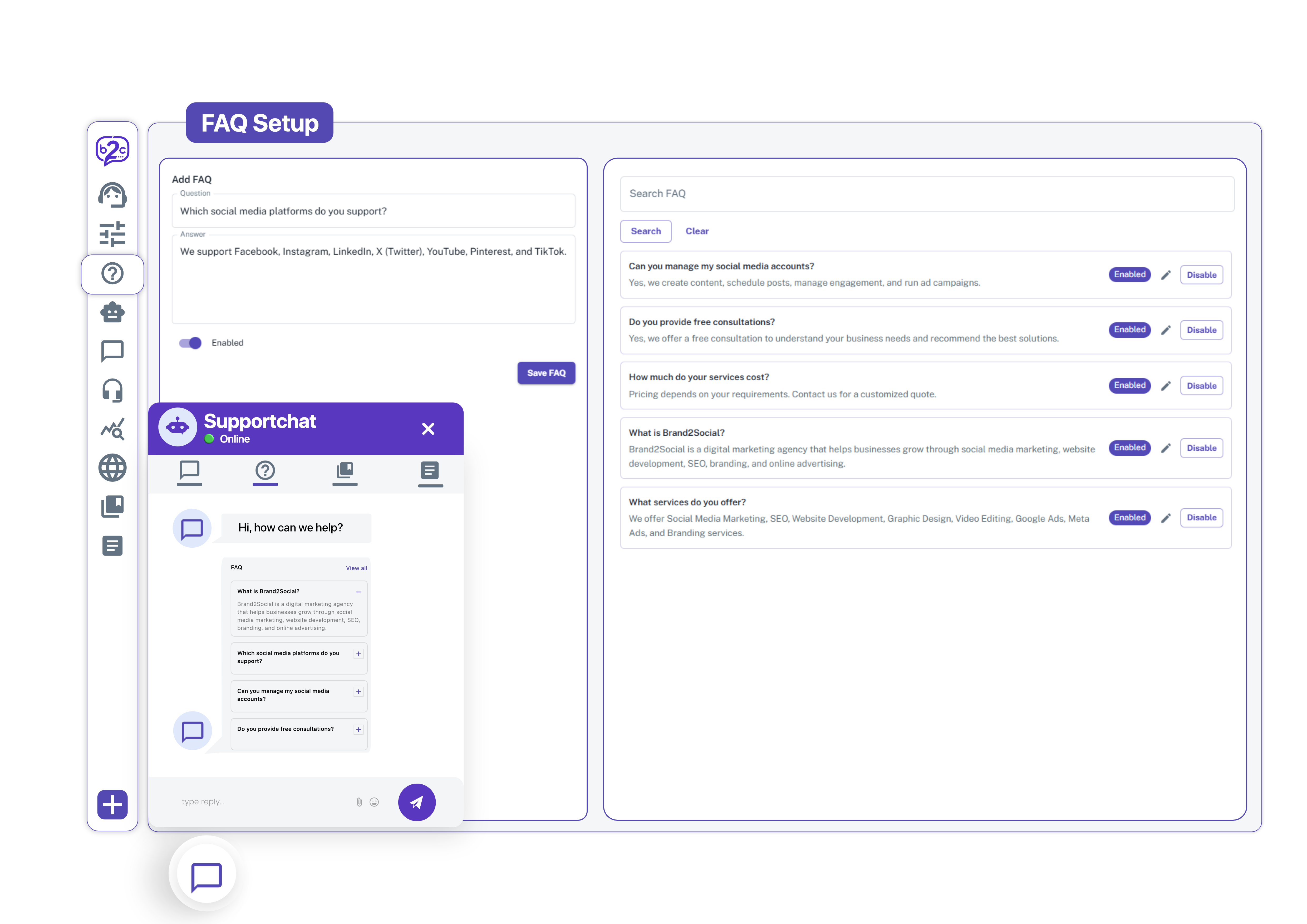
The Brand2Chat FAQ Setup allows you to create a library of frequently asked questions and answers that customers can browse directly inside your chat widget. By enabling self-service FAQs, customers get instant answers to common questions without needing to wait for a live agent reducing your support workload and improving customer satisfaction.
How to Access FAQ Setup
1. Log in to your Brand2Chat account.
2. Click on FAQ Setup in the left-side navigation menu, under Setup.
3. The FAQ Setup page will load with an Add FAQ form on the left and a Search FAQ panel with your existing FAQ list on the right.
Enabling the FAQ Feature
FAQs are disabled by default, so this feature needs to be switched on before your Q&As will show up for customers.
1. At the top right of the FAQ Setup page, click the toggle switch to change the status from Inactive to Active.
2. Once Active, any enabled FAQ entries you’ve saved will start appearing to customers in the chat widget.
How to Add a New FAQ
1. Go to FAQ Setup from the left sidebar.
2. In the Add FAQ panel on the left, click the Question field and type your question (for example, “How do I reset my password?”).
3. Click the Answer box and type the full answer to that question.
4. Formatting Options: Use the rich text toolbar above the Answer box to add bolding, italics, underlines, bulleted/numbered lists, or hyperlinks.
5. Code View: If you’d rather format using code, click the code icon (< >) to type or paste your answer directly.
6. Preview: Check the Preview box below the Answer field as you write it shows a real-time look at exactly how your formatted answer will appear to customers in the widget.
7. Once you’re happy with how the FAQ looks, click Save FAQ.
8. Your new FAQ will immediately appear in the FAQ list on the right side of the screen.
How to Edit, Delete, and Reorder FAQs
All of your saved FAQs are listed on the right side of the screen. From here you can manage what appears in your chat widget.
Editing or Deleting a FAQ
Use the pencil icon (Edit) or the trash can icon (Delete) on the right side of each saved FAQ.
- Edit: Loads the question and answer back into the Add FAQ form on the left so you can make changes, then click Save FAQ to update it.
- Delete: Permanently removes the FAQ from your list.
Reordering FAQs
The order of the list determines how the questions are displayed in your live chat widget. To reorder them, click and hold the dragger icon (the six dots) on the left side of any FAQ block, then drag it up or down to your preferred position.
How to Search Your FAQs
1. In the FAQ list panel on the right, click the Search FAQ field.
2. Type any keyword from the question or answer you’re looking for.
3. Click Clear to reset the search and show all FAQs again.
Tips for Writing Good FAQs
- Keep questions short and specific - write questions exactly as your customers would ask them.
- Keep answers concise - aim to answer the question directly in 2–4 sentences. For complex topics, direct customers to your Knowledge Base or an agent.
- Focus on your most common queries - start with the questions your support team receives most frequently.
- Review and update regularly - outdated FAQs create confusion. Revisit your FAQ list whenever your product or policies change.
Troubleshooting
My FAQs aren’t showing in the widget
- Check that the toggle at the top right of the FAQ Setup page is set to Active.
- Ensure your Chat Widget is also active. Go to Widget Setup and confirm the toggle at the top right is set to Active.
I cannot find a FAQ I saved earlier
- Use the Search FAQ field on the right panel to search by keyword, then click Clear to see the full list again.
- If it doesn’t appear, it may have been deleted. Re-create it using the Add FAQ form.