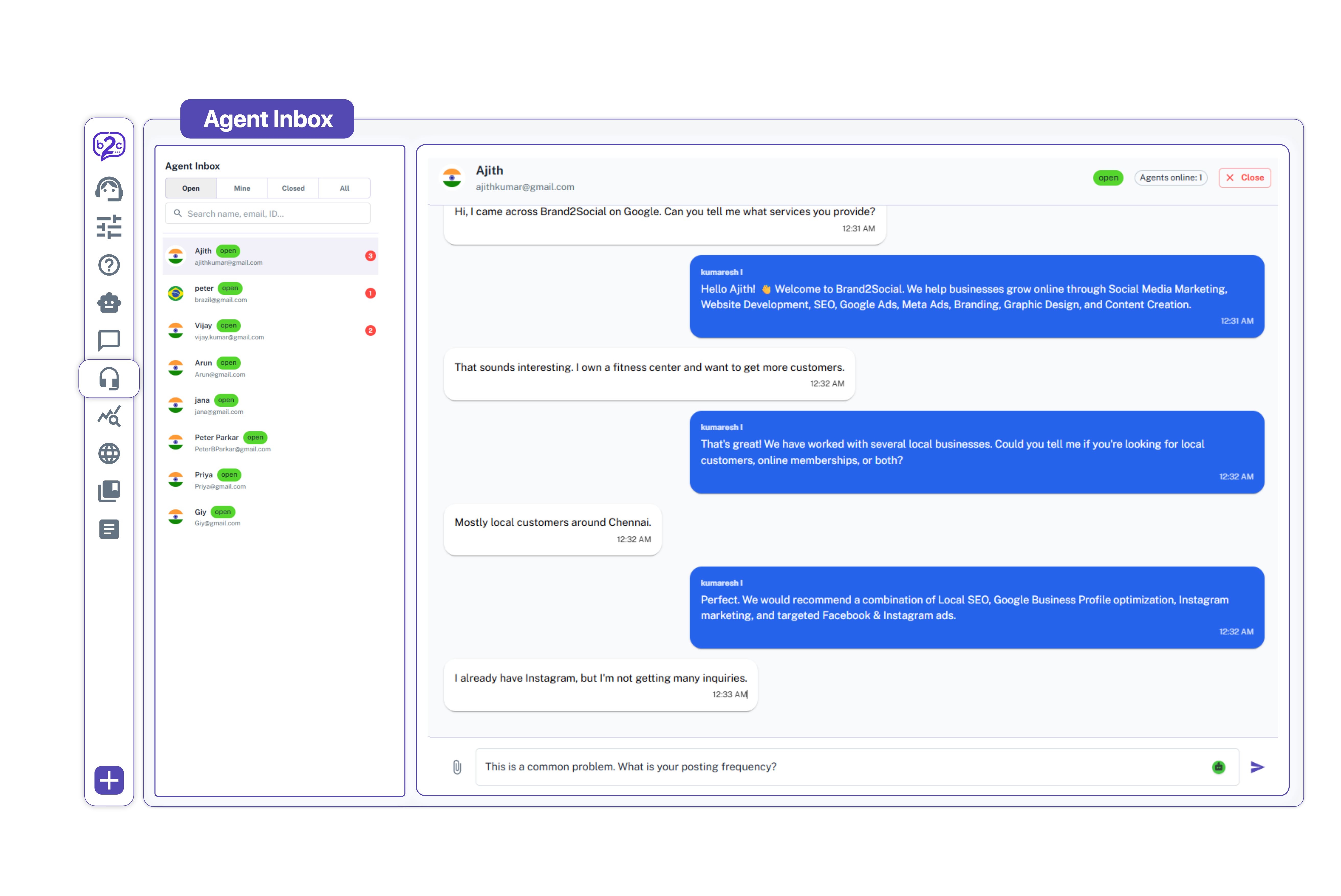
The Brand2Chat Agent Inbox is the central workspace where your support agents manage all live chat conversations in real time. Every incoming chat from a website visitor appears here, organised into clear tabs so agents can stay focused and never miss a message. Agents can read full conversation histories, send replies, share files, and close resolved conversations all from a single, easy-to-use interface.
How to Access Agent Inbox
1. Log in to your Brand2Chat account.
2. Click on Live Chat in the left-side navigation menu.
3. Select Agent Inbox from the expanded menu.
4. The Agent Inbox will load with your conversation list on the left and the active chat thread on the right.
Understanding the Agent Inbox Layout
The Agent Inbox is split into two panels:
Left Panel Conversation List
Displays all your visitor conversations, each showing the visitor’s name, email address, and a status badge (Open or Closed). An unread message count badge appears on conversations with new messages that have not yet been seen.
Right Panel Chat Thread
When you click a conversation on the left, the full chat history with that visitor opens on the right. This is where you read messages and type your replies.
Conversation Tabs
The conversation list is organised into four tabs:
- Open - all currently active conversations that have not been closed yet.
- Mine - conversations that are specifically assigned to or handled by you.
- Closed - conversations that have been resolved and marked as closed by an agent.
- All - every conversation in the workspace across all agents and statuses.
How to Reply to a Visitor
1. Go to Live Chat → Agent Inbox from the left sidebar.
2. Click on any conversation in the left panel to open the chat thread.
3. Read the visitor’s messages in the chat thread on the right.
4. Click the “Type your reply…” field at the bottom of the chat thread.
5. Type your response to the visitor.
6. Press Enter or click the Send button (arrow icon at the bottom right) to send your message.
7. Your reply will appear in the chat thread and be delivered to the visitor on your website instantly.
How to Send a File or Attachment
1. Open the conversation you want to send a file in.
2. Click the paperclip (attachment) icon at the bottom left of the reply area.
3. Select the file from your computer.
4. The file will be sent to the visitor in the chat.
How to Close a Conversation
1. Open the conversation you want to close.
2. Click the Close button at the top right of the chat thread panel.
3. The conversation will be marked as Closed and moved to the Closed tab.
4. Closed conversations can still be viewed at any time from the Closed tab for reference.
How to Search for a Conversation
1. In the left panel, click on the Search field above the conversation list.
2. Type the visitor’s name, email address, or conversation ID.
3. Matching conversations will appear in the list below as you type.
Checking Agent Availability
At the top right of the chat thread panel, the Agents online indicator shows how many agents from your workspace are currently active. This helps you understand your team’s current capacity at a glance.
Tips for Agents
- Respond quickly - visitors expect fast replies in live chat. Aim to send your first response within a minute of a conversation appearing.
- Check the Mine tab regularly - conversations assigned to you appear here, keeping your workload separate from the team queue.
- Close conversations when done - keeping resolved chats open clutters the Open tab for the whole team. Close a conversation as soon as the visitor’s issue is resolved.
- Use the All tab for team oversight - if you are a team lead or supervisor, the All tab gives you visibility over every conversation happening across all agents.
Troubleshooting
I am not receiving new visitor chats
- Make sure the Enable Live Chat toggle is turned ON in Live Chat → Live Chat Setup.
- Confirm that the chat widget is active on your website by checking the Enabled toggle in Widget Setup.
- Check that your browser notifications are enabled so you are alerted when a new conversation arrives.
A conversation is not appearing in my inbox
- Check the All tab to see if the conversation exists but is assigned to another agent.
- Use the Search field to find the conversation by the visitor’s name or email.
- Conversations that have already been closed will only appear in the Closed tab.
My reply is not being sent
- Check your internet connection. Live chat requires a stable connection to send and receive messages in real time.
- Refresh the page and try sending the reply again. If the issue continues, log out and log back into your Brand2Chat account.